
 Intelli Docs
Campaigns
Send bulk WhatsApp messages to your audience using approved templates. schedule, track, and retry.
A campaign is how you send a message to many people at once. Find it at Dashboard → Campaigns.
Before you start, check you have:
- A connected WhatsApp Business number (Connect to WhatsApp).
- An APPROVED template to send (Templates).
- Contacts in your audience, or a CSV ready to upload (Audiences).
Step by step: send your first campaign
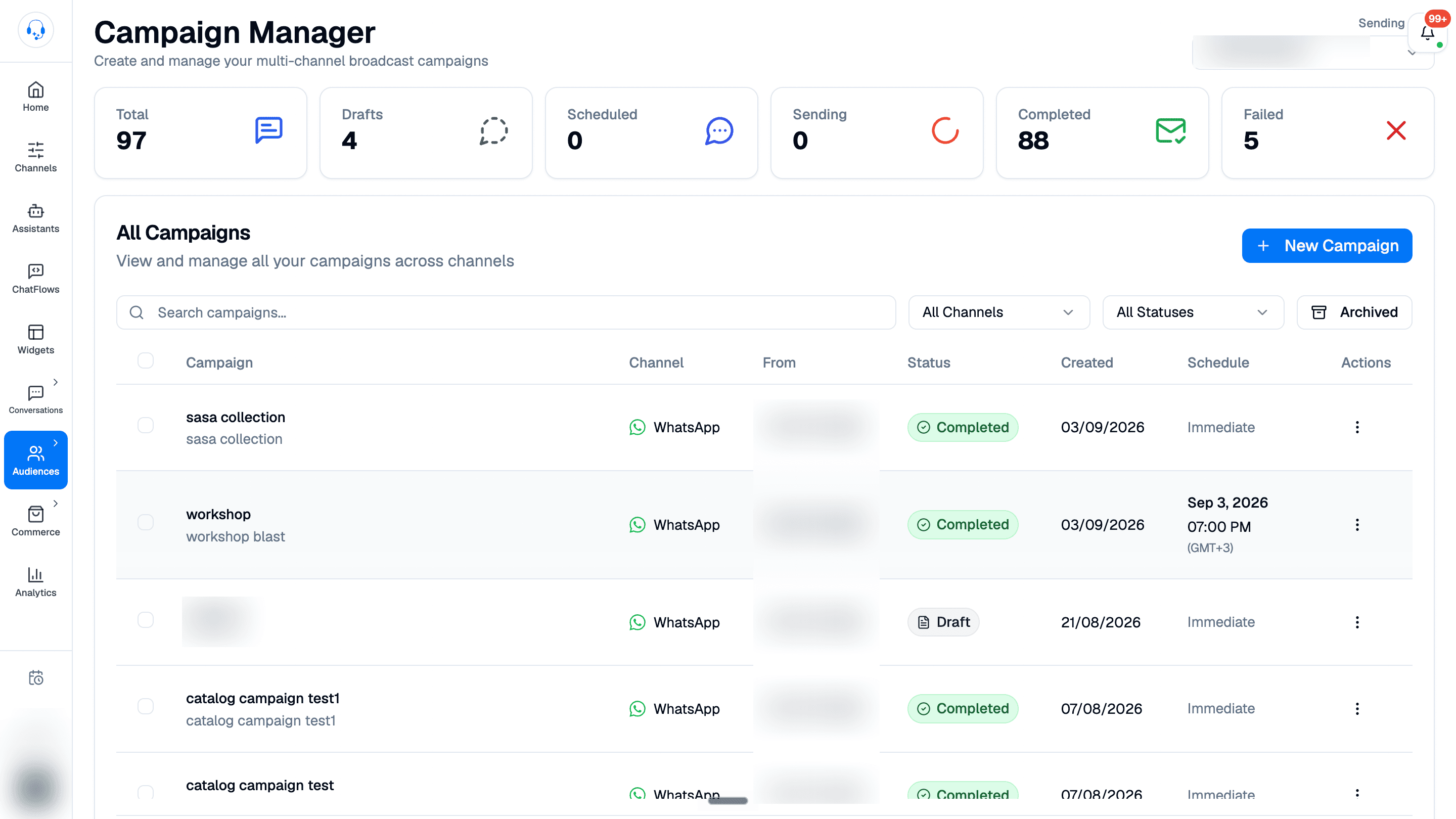
Click New Campaign
From Campaign Manager, click New Campaign at the top right of the campaign list. Check the Sending from number before continuing.
Name it and pick a channel
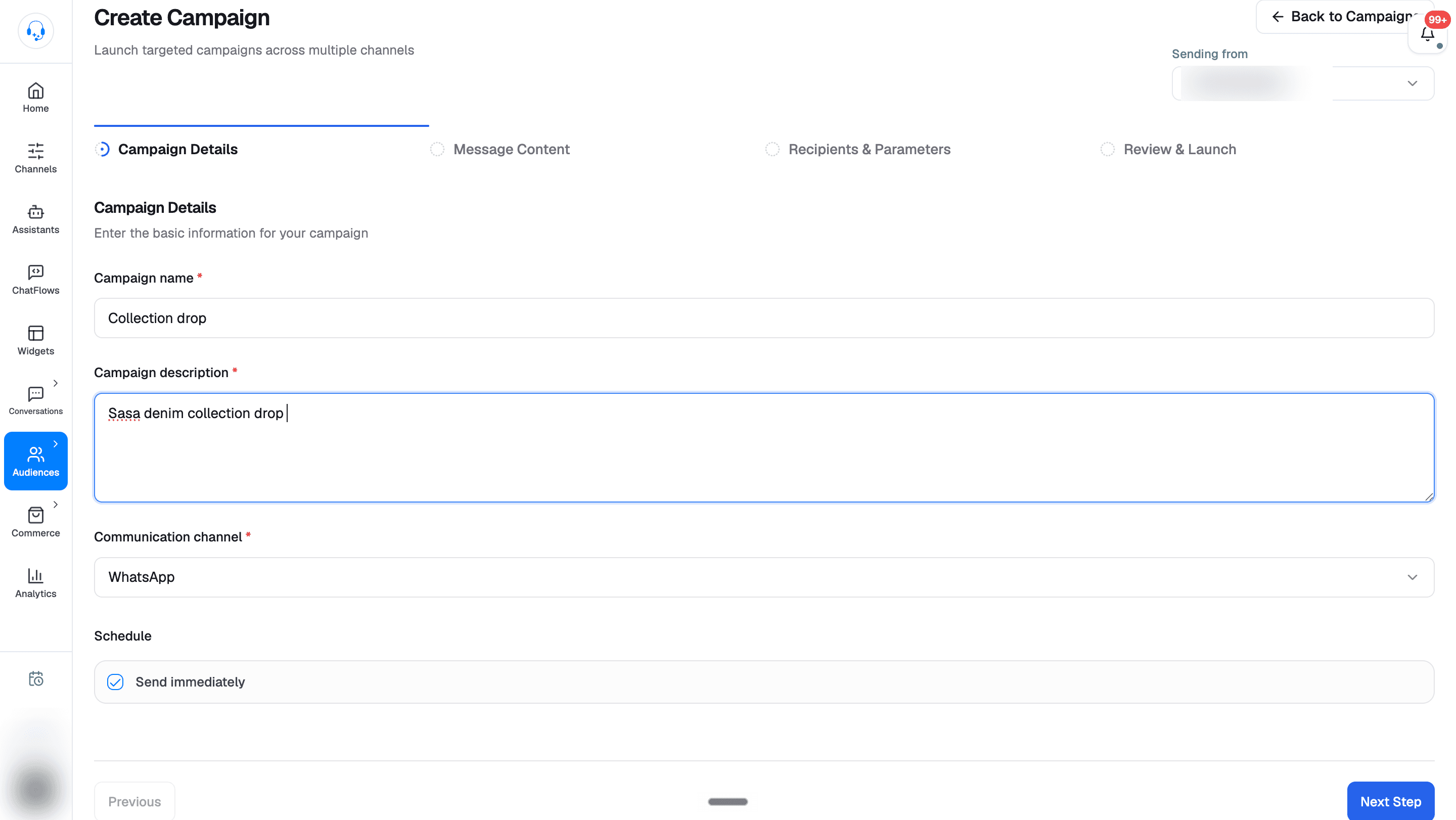
In Campaign Details, enter a name you'll recognize later (e.g. "BF Sale - VIPs") and a description. Choose WhatsApp as the communication channel.
Schedule
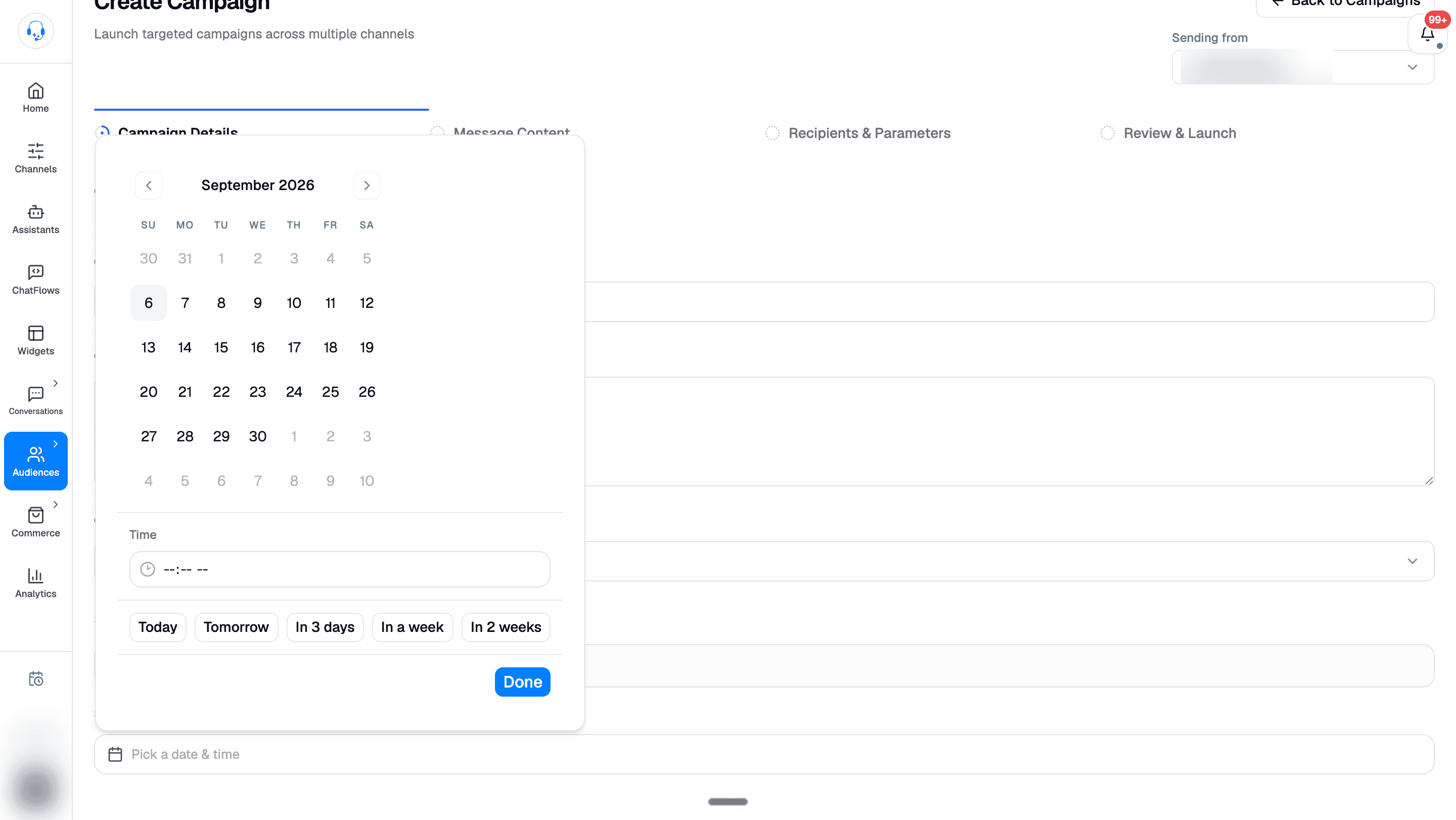
Still in Campaign Details, leave Send immediately checked to send when you launch. To schedule for later, clear it, open Pick a date & time, choose the date and time, and click Done.
Times are interpreted in your timezone. Click Next Step to choose your message; you'll confirm the send time again in the final review.
Pick a template
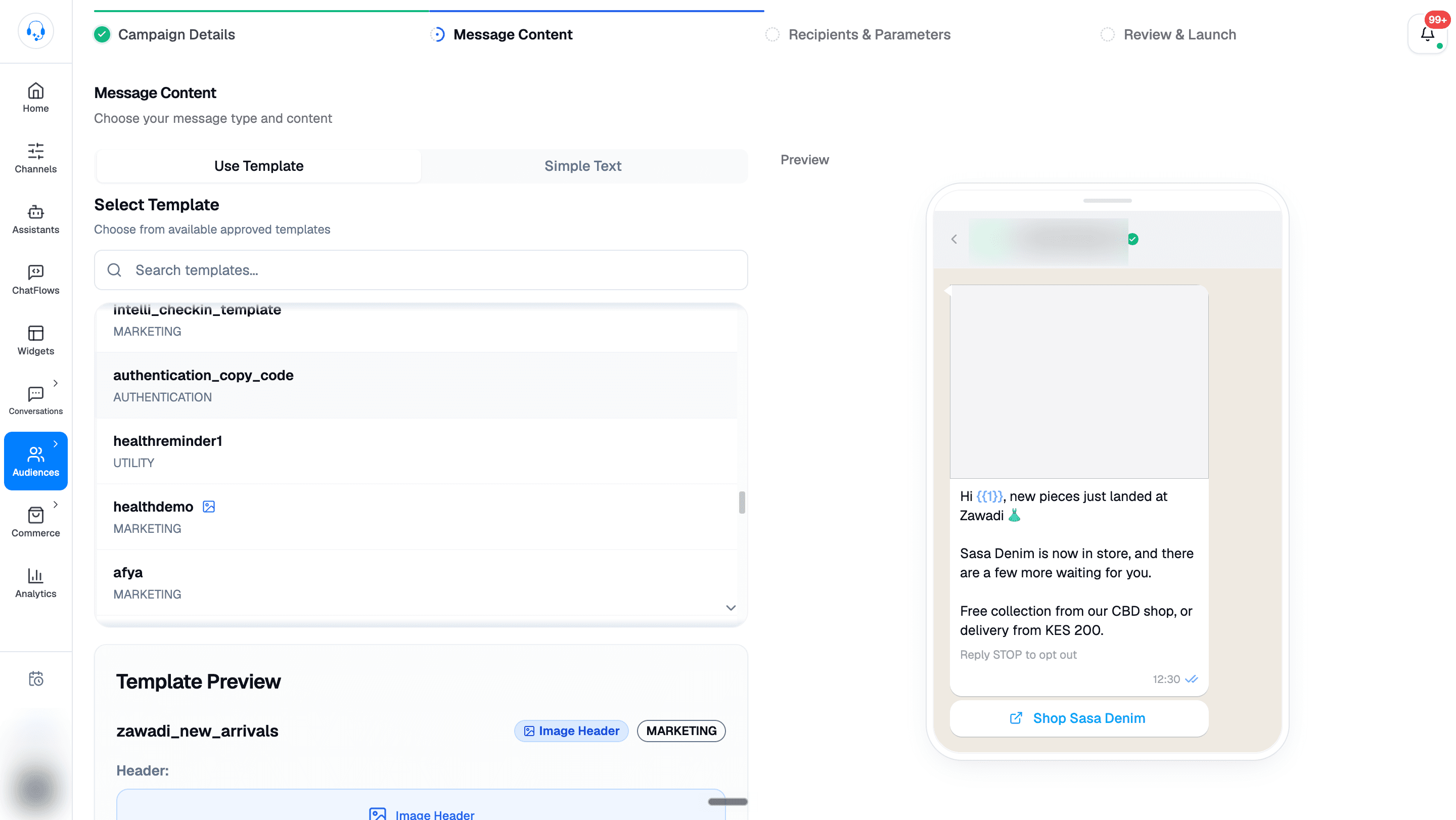
In Message Content, choose Use Template and search for your template. Only APPROVED templates appear. Check the message preview on the right before continuing.
Choose who receives it
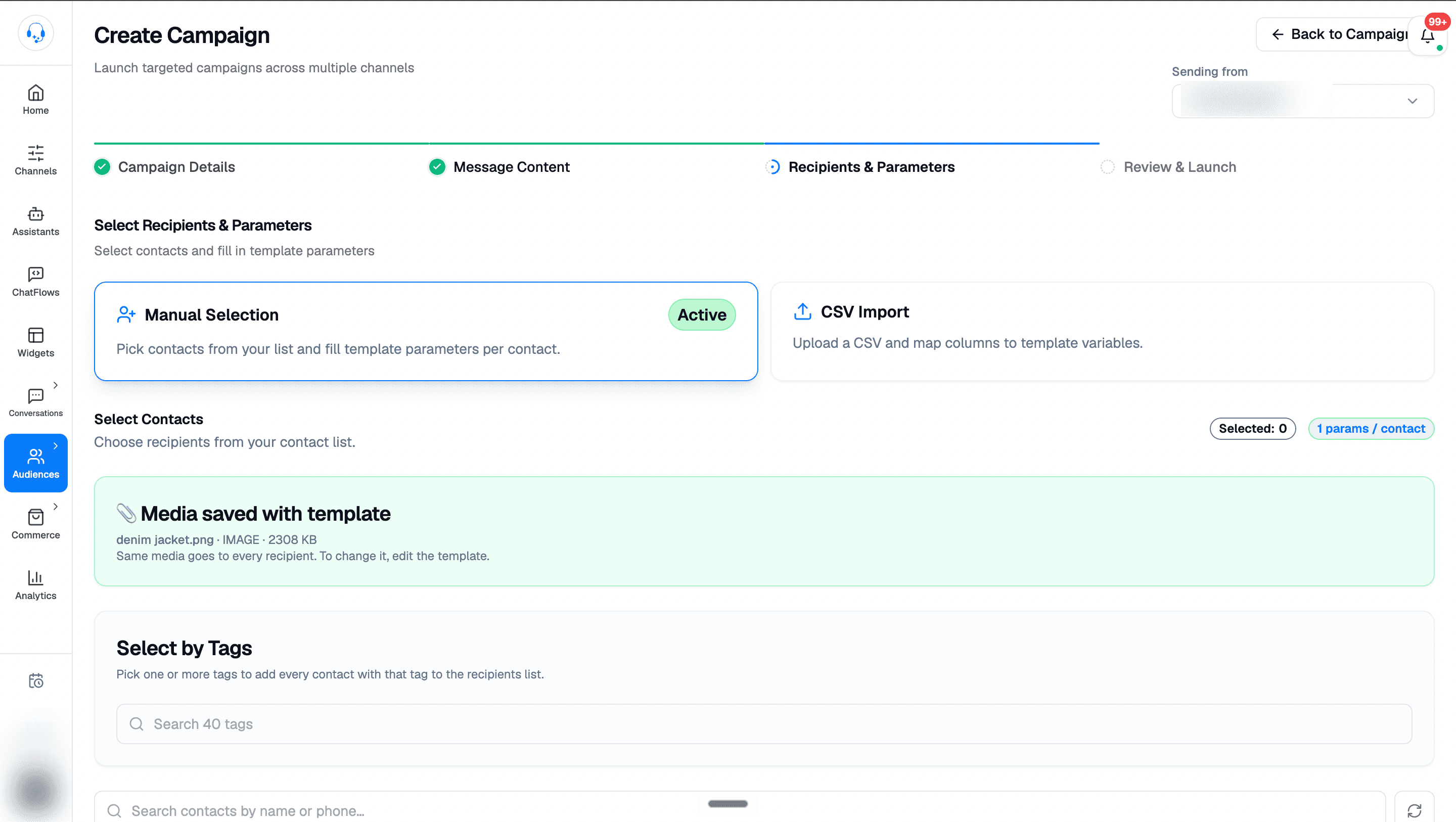
In Recipients & Parameters, choose how to build your recipient list:
- Manual Selection: pick specific contacts from your list.
- Select by Tags: within Manual Selection, choose one or more tags to add every contact with those tags.
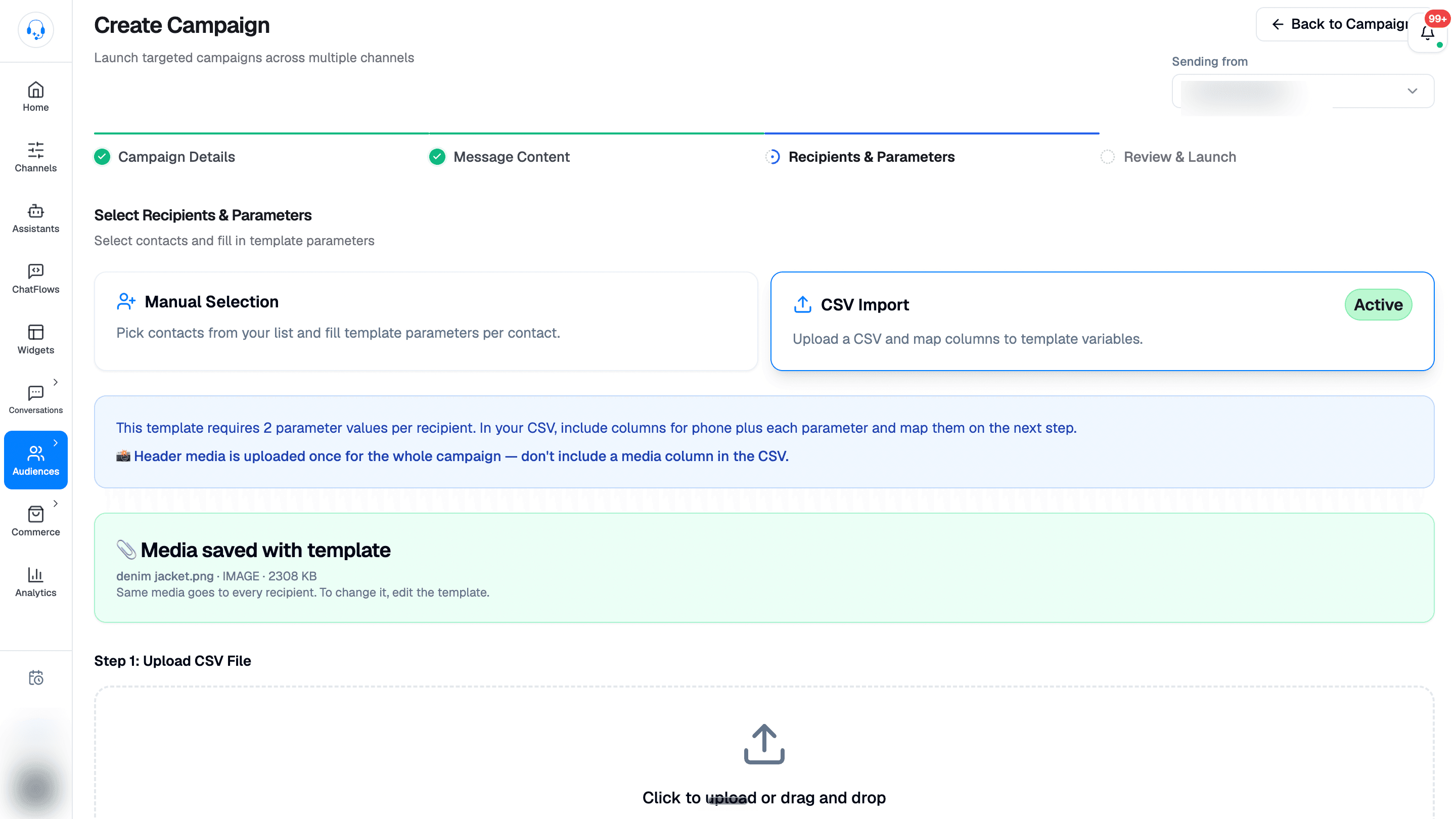
- CSV Import: upload a CSV and map its columns to template variables.
For CSV Import, include a phone column and a column for each required template parameter. Click the upload area or drag in your CSV, then map the columns on the next step. Don't include a media column; header media is shared across the campaign.
Fill in template variables
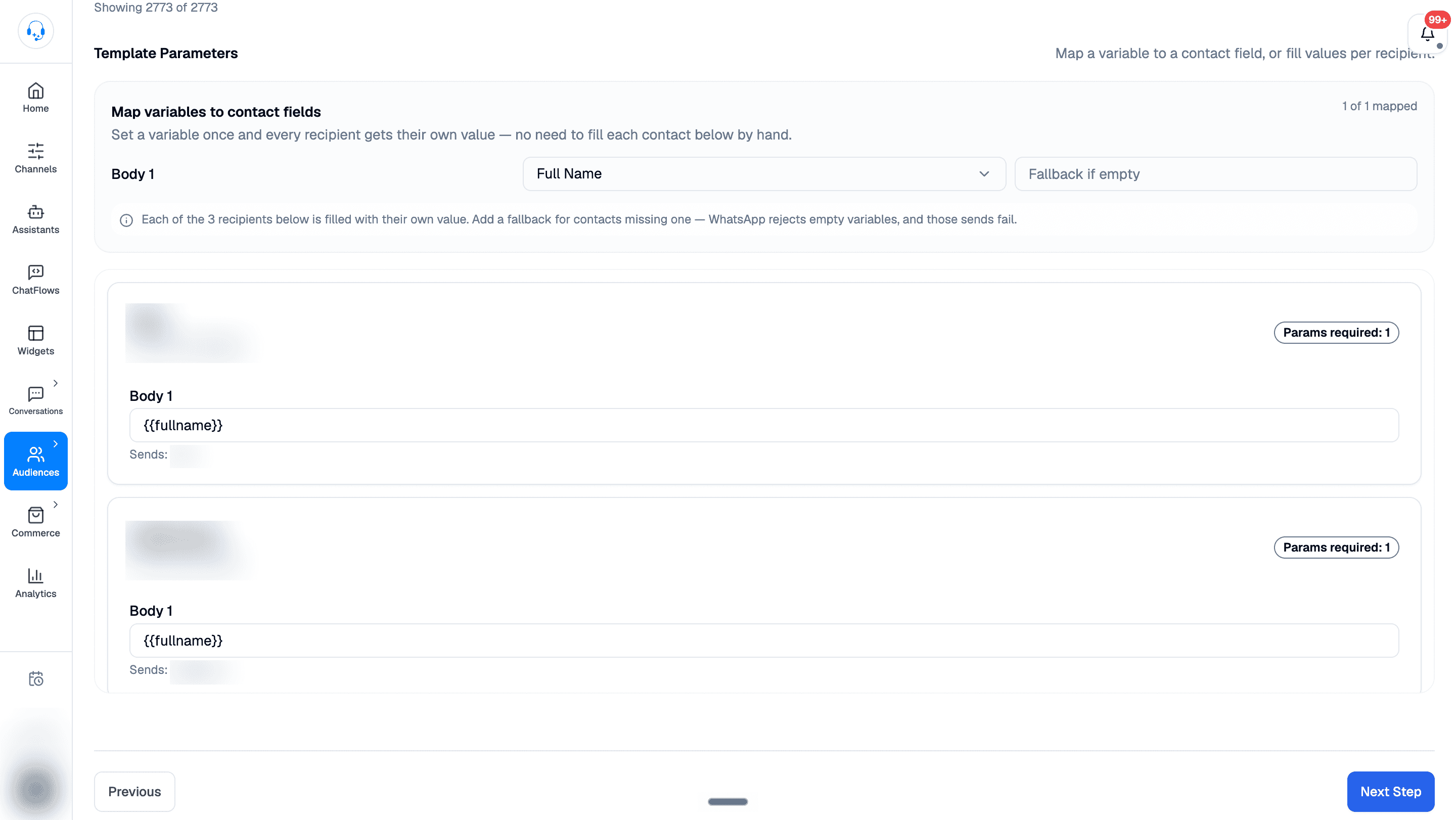
In Manual Selection, use Map variables to contact fields under Template Parameters to choose a field for each variable. For example, map Body 1 to Full Name so every recipient gets their own name. You can also fill values per recipient.
Add a Fallback if empty for contacts missing a value, then check the Sends: preview below each recipient's parameter. WhatsApp rejects empty variables, so fill any gaps before continuing.
For CSV Import, map your CSV columns to the template variables.
For each {{1}} in your template, tell Intelli what to put there:
- Contact field: e.g.
fullname. - Custom field: e.g.
custom:order_id. - Static text: the same value for every recipient.
Review and launch
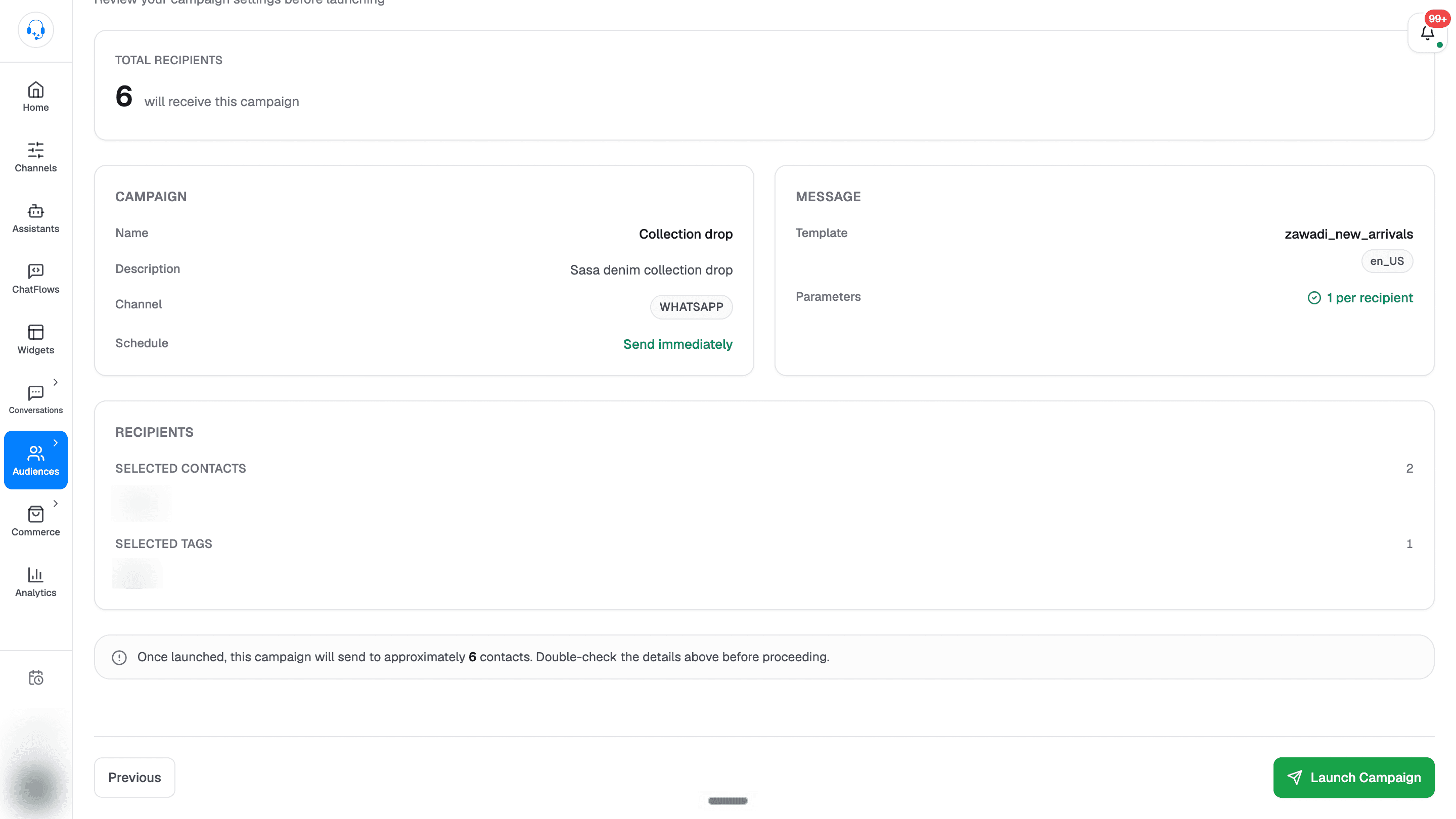
In Review & Launch, check the total recipients, campaign details, schedule, template, and parameter count. Confirm the selected contacts and tags, then click Launch Campaign when you're ready to send.
Product templates: choose your products
If the template you picked is a commerce template, the form adds a product picker so the campaign knows what to sell:
- Featured product: single-product templates show one product; pick it here. Its image, title, and price come from your catalogue when the campaign sends.
- Product sections: multi-product templates group the products recipients will browse. Up to 10 sections and 30 products in total.
- Carousel products: product-carousel templates take up to 10 products, one card each, shown in the order you choose.
- Catalogue templates: these open your whole catalogue, so the only choice is the thumbnail: which product's image heads the message. Leave it unset and the first catalogue item is used.
You can't launch until the product selection is complete; if something is missing (no catalogue product picked, an unfinished section), an error tells you exactly what to finish.
What happens after you launch
A campaign goes through these states; check the Status column in Campaign Manager:
- Scheduled: set to go later. You can still cancel.
- Sending: actively sending.
- Completed: all messages have been pushed to WhatsApp.
- Paused: you stopped it mid-send.
- Failed: something went wrong before the send could finish.
Reading the results
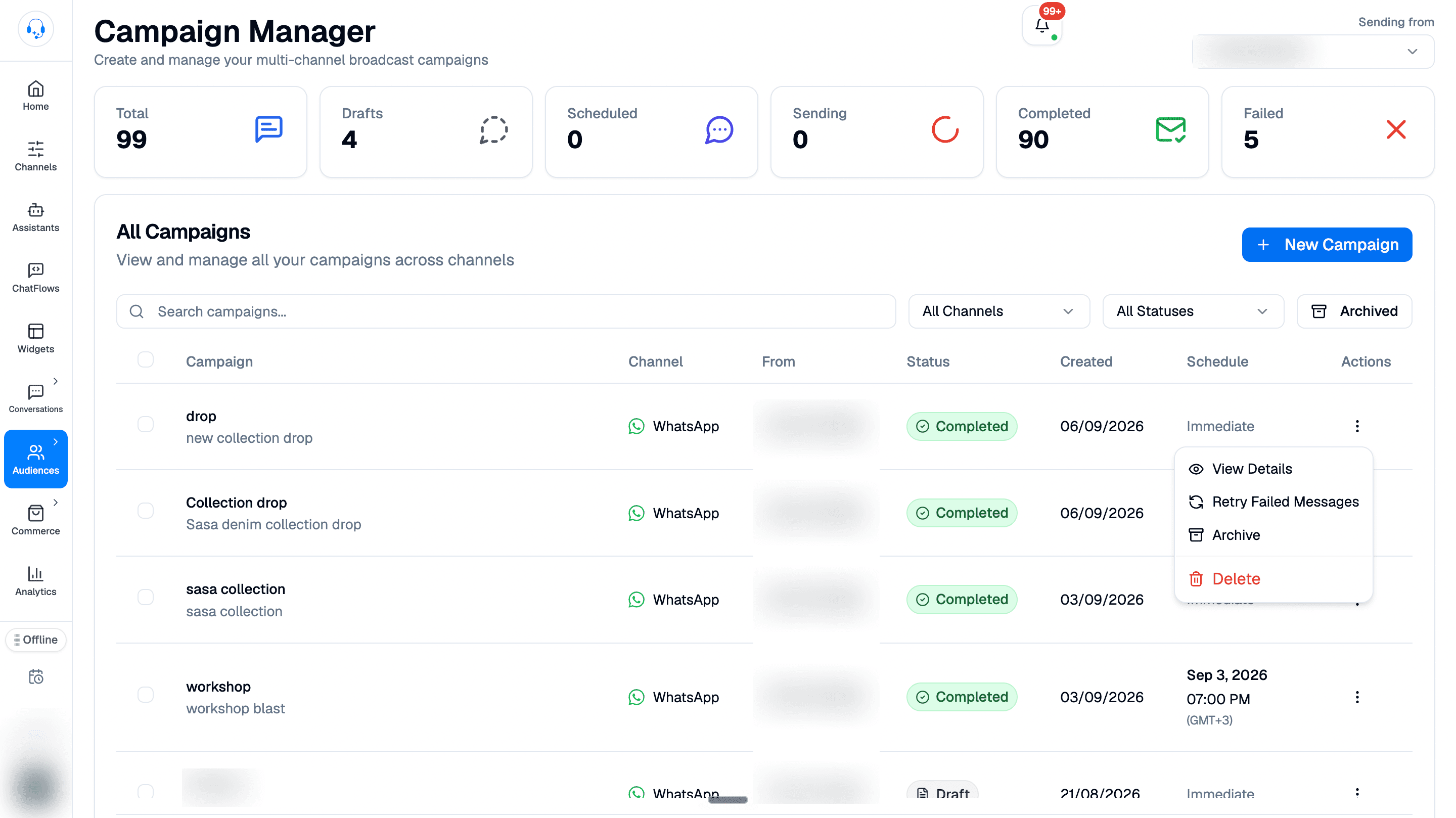
Open a campaign's Actions menu and choose View Details to see its performance metrics and message activity. The menu also includes Retry Failed Messages, Archive, and Delete for completed campaigns.
Performance Metrics shows sent, delivery, read, and reply rates. Update History records status transitions, while Latest message activity lists individual recipients, messages, statuses, and timestamps.
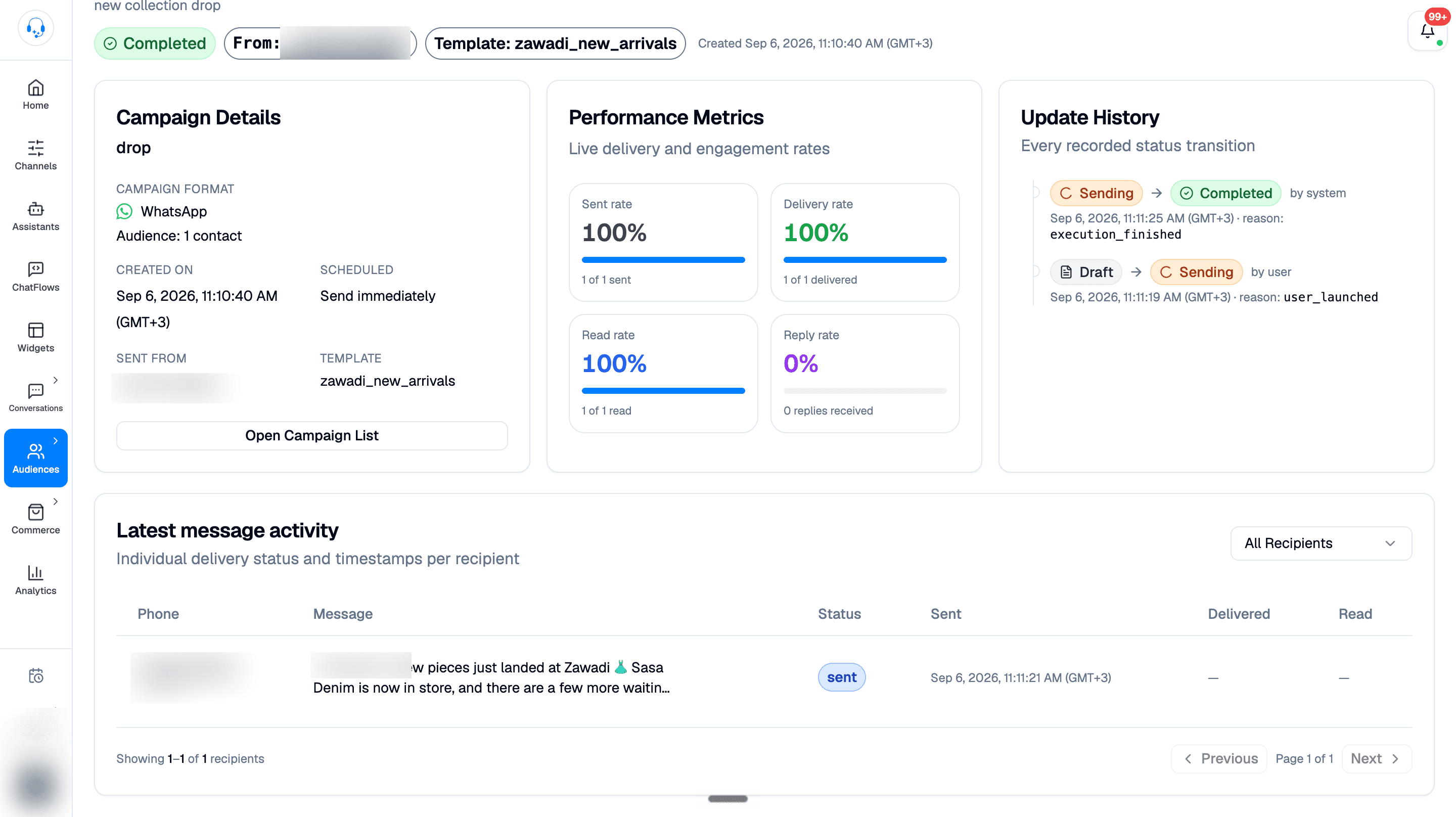
Message outcomes include:
- Sent: Intelli handed it to WhatsApp.
- Delivered: it reached the recipient's phone.
- Read: the recipient opened it (only counted if they have read receipts on).
- Reply: the recipient responded to the campaign.
- Failed: usually a bad number, blocked sender, or template mismatch.
Drafts and retries
- Drafts save as you go. Close the form, come back later, click Continue on the draft row.
- Retry failures: if a campaign has failed messages (e.g. rate limits hit), choose Retry Failed Messages from its Actions menu to resend just those.
Quick send
Need to fire off a single template to one number without setting up a full campaign? Use the Test option on the Templates page; it sends one approved template to any number you enter (Test your template).
Tips for a successful campaign
- Start small. Send to 5–10 contacts first. Make sure the variables look right.
- Check your template approval. A "pending" template can't be used.
- Respect opt-out. If someone replies STOP, tag them and exclude that tag from future campaigns.
- Watch the quality rating. If too many people block you or report messages, WhatsApp will lower your messaging limit.