
 Intelli Docs
Connect to WhatsApp
Link your WhatsApp Business number to Intelli with the embedded Facebook signup. pick an assistant, activate, and go live in minutes.
Linking WhatsApp is the most important channel-setup step for most businesses. Once connected, your AI assistant can reply 24/7, you can send campaigns, and every conversation lands in your unified inbox.
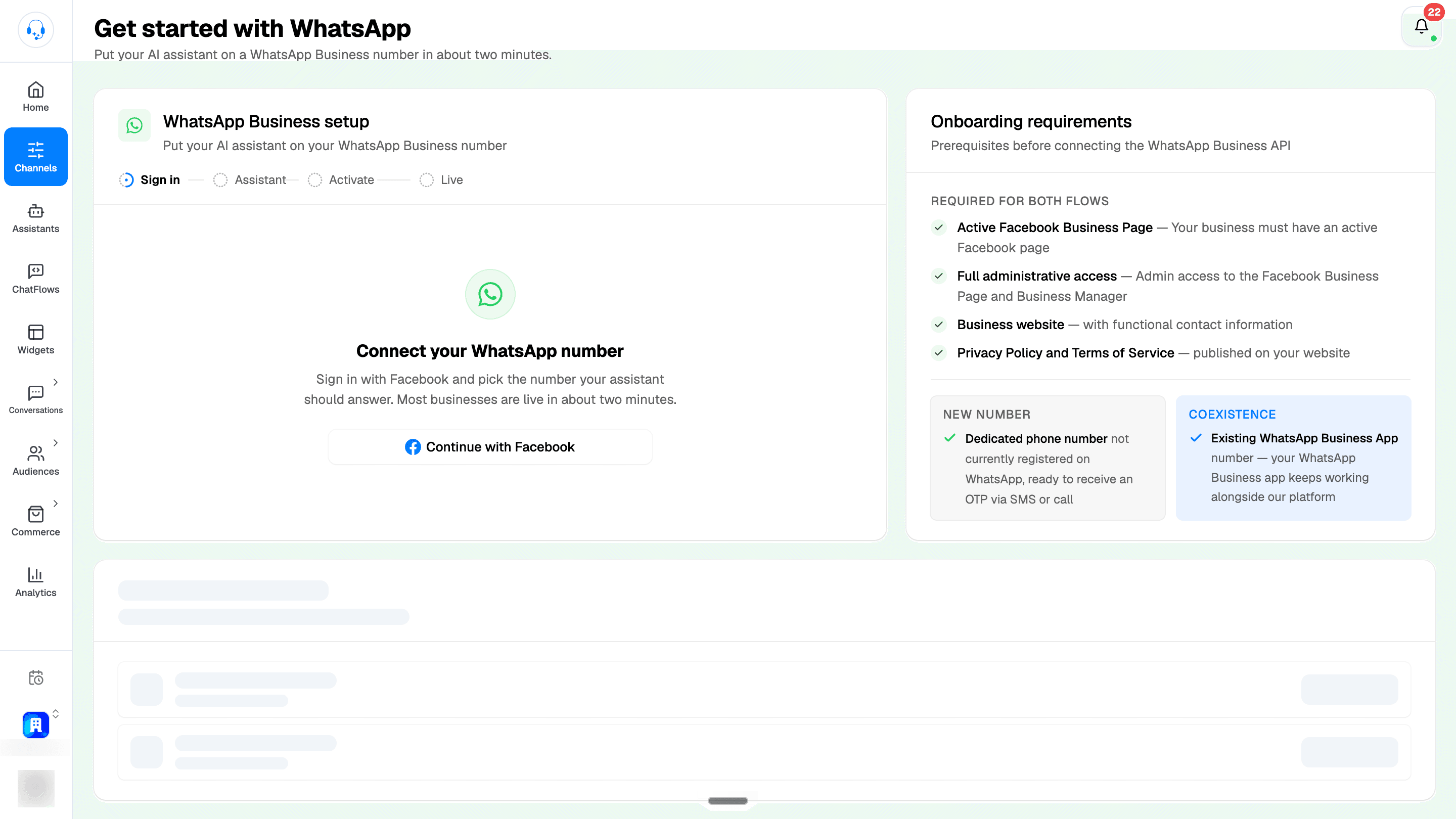
Find the setup at Dashboard → Channels → WhatsApp. The page is called Get started with WhatsApp, and the WhatsApp Business setup card walks you through four stages: Sign in → Assistant → Activate → Live.
Create your assistant first
The signup requires you to pick an AI assistant before the connection can finish. If your organization has none, the flow stops with "You need an AI assistant before you can connect WhatsApp" and a Create an assistant button. Save yourself the round trip: set up an assistant before you start.
What you'll need
The Onboarding requirements card next to the signup lists the prerequisites:
- An active Facebook Business Page for your business.
- Full administrative access: admin access to the Facebook Business Page and Business Manager.
- A business website with functional contact information.
- A Privacy Policy and Terms of Service published on your website.
Then pick your path; both are supported:
- New number: a dedicated phone number that is not currently registered on WhatsApp, ready to receive a one-time code via SMS or call.
- Coexistence: a number already on the WhatsApp Business app. Your WhatsApp Business app keeps working alongside Intelli, and your contacts and message history are imported.
Check your connected numbers
If your organization already has numbers linked, a Connected WhatsApp numbers card appears below the signup, badged with how many are active. Each row shows the number with an Open inbox button.
Only connect another number if it's different from the ones listed. Reconnecting a number that's already there isn't needed.
Sign in with Facebook
- Click Continue with Facebook on the WhatsApp Business setup card.
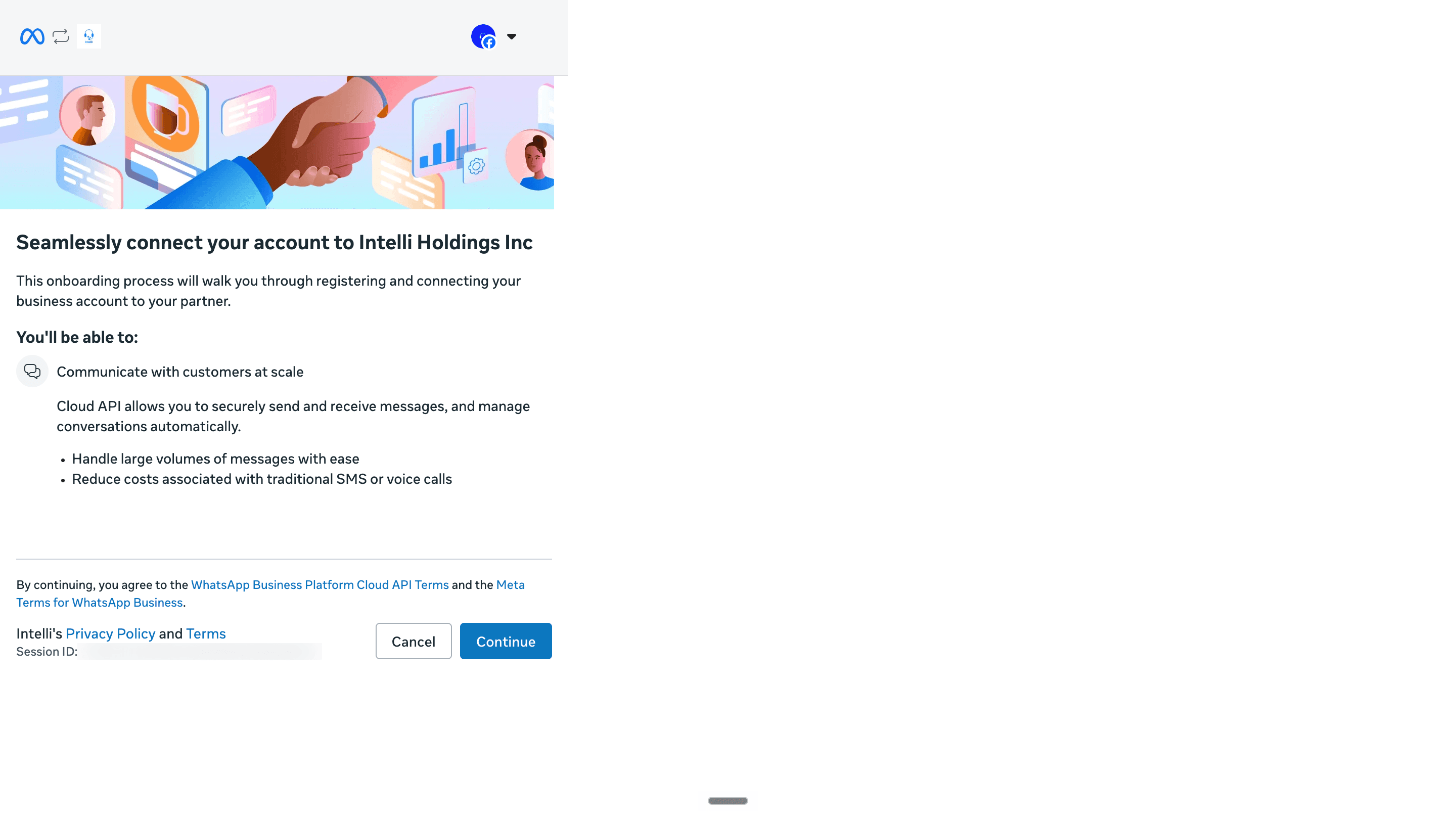
- A Meta popup opens. Sign in with the account that has admin access to your Business Manager. Review the embedded signup introduction for Intelli Holdings Inc and click Continue.
- Follow Meta's steps to select your business and either add a new phone number or connect the number from your existing WhatsApp Business app.
- When the popup finishes, you're back on the Intelli card, which moves to the next stage automatically.
If you connected a number from the WhatsApp Business app, the card shows a Coexistence badge and the note "Coexistence mode: your WhatsApp Business app keeps working alongside Intelli."
Choose an assistant
The card now shows Choose an assistant; the AI that answers customers who message this number (you can change it anytime).
- Pick an assistant from the grid. If you only have one, it's pre-selected.
- Click Connect WhatsApp.
If no assistants exist yet, the flow blocks here; click Create an assistant, set one up, then come back and re-run the signup.
Activation
The card switches to Activating your number with a live checklist. Keep the tab open; this usually takes under a minute.
- Linking your WhatsApp Business account; always runs.
- Importing contacts and Importing message history; coexistence only, with running counts of items synced.
If a sync fails, an error appears with a Retry sync button.
You're live: send a test message
On success you'll see confetti and "Your WhatsApp is live" with your connected number, plus a short test checklist:
- Message your business number from your personal WhatsApp (there's a Message your number shortcut).
- Your assistant replies on its own.
- Click Open your inbox to watch the conversation land in Conversations → WhatsApp.
From the same screen you can Personalize your assistant (name, prompt, files like price lists and FAQs) or Connect another number.
New organization?
If your organization doesn't have a plan yet, a free-trial dialog may open after the connection succeeds so you can activate a trial right away. Paying customers never see it.
Coexistence mode
Connecting a number that's already on the WhatsApp Business app doesn't take it away from you. In coexistence mode:
- Your WhatsApp Business app keeps working alongside Intelli.
- Your contacts and message history are imported during activation, so past conversations are available in your Intelli inbox.
Connecting more than one number
Repeat the signup for additional numbers; useful when you have one number for sales and another for support. Each connected number appears in the Connected WhatsApp numbers card with its own Open inbox link. Before re-running the signup, check that card: only connect a number that isn't already listed.
The 24-hour rule (don't skip)
WhatsApp has a strict rule:
You can freely reply to a customer for 24 hours after their last message. Outside that window, you can only send a Meta-approved template.
So before running campaigns, head to Templates and get at least one approved.
Keep your quality rating healthy
Meta assigns each business a quality rating and a daily messaging limit, based on how recipients react to your messages.
- Don't spam. Mass-sending unwanted marketing tanks your rating fast.
- Honour opt-outs. If someone replies STOP, tag them and exclude them from future campaigns.
- Get explicit opt-in. Especially for marketing messages.
What's next
- Build your first template → Templates
- Send a campaign → Campaigns
- Reply in real time → Manage Conversations